The myIO App can be installed on Android and Mac, and runs in the browser on an iPhone and on any computer. It does not come from the app stores but directly from us, so at the first installation the phone or the Mac asks whether you trust it. Here we describe what to do then. What the app can do is shown on the App, Cloud and displays page. The app’s interface is in Hungarian.
You can install it even if you don’t have a myIO yet: the app starts with a demo mode, with two made-up houses.
On Android
- Download it with your phone’s browser: myIO App for Android (APK, about 120 MB).
- Open the downloaded file. If the phone says that for security reasons it cannot install from this source, tap Settings, switch on Allow from this source, and go back.
- Tap Install, then Open.
- At the first start the app asks for permission for notifications and the microphone. Notifications are needed for alarms, the microphone for voice control.
You don’t have to update by hand: the app tells you when a new version is out and installs it with one tap.
On a Mac
- Download it: myIO App for macOS (ZIP, about 40 MB). It needs macOS 10.15 or later, and runs on both Intel and Apple Silicon Macs.
- Unzip it with a double click and drag the myIO app into the Applications folder.
- Start it. At the first start macOS says it cannot verify the app, because it does not come from the App Store. Open System Settings › Privacy & Security and choose Open Anyway at the bottom. On older macOS versions it is enough to right-click the app and choose Open.
You only have to do this once; after that the app starts the usual way.
On an iPhone, an iPad and in the browser
The myIO App also runs in the browser, with nothing to install: smarthomeninja.hu/myioapp.
- On an iPhone and an iPad: open it in Safari, tap the Share icon and choose Add to Home Screen. From then on it starts from an icon, like an app.
- On Android: Add to Home screen in the Chrome menu puts the icon out. On Android, however, we recommend the installable app, because it does more.
- On a computer: you can simply keep it open in a browser tab.
The browser version gives you the same dashboard, but in the background the browser limits it: it signals an alarm only while the tab is open, for example. The differences are shown in the table on the App, Cloud and displays page. It can also happen that the browser does not let the app reach a myIO on your home network. In that case put myIO’s own web interface on the home screen instead: the same way, with the Share icon, after opening the address of your myIO.
First start: the demo, then your own myIO
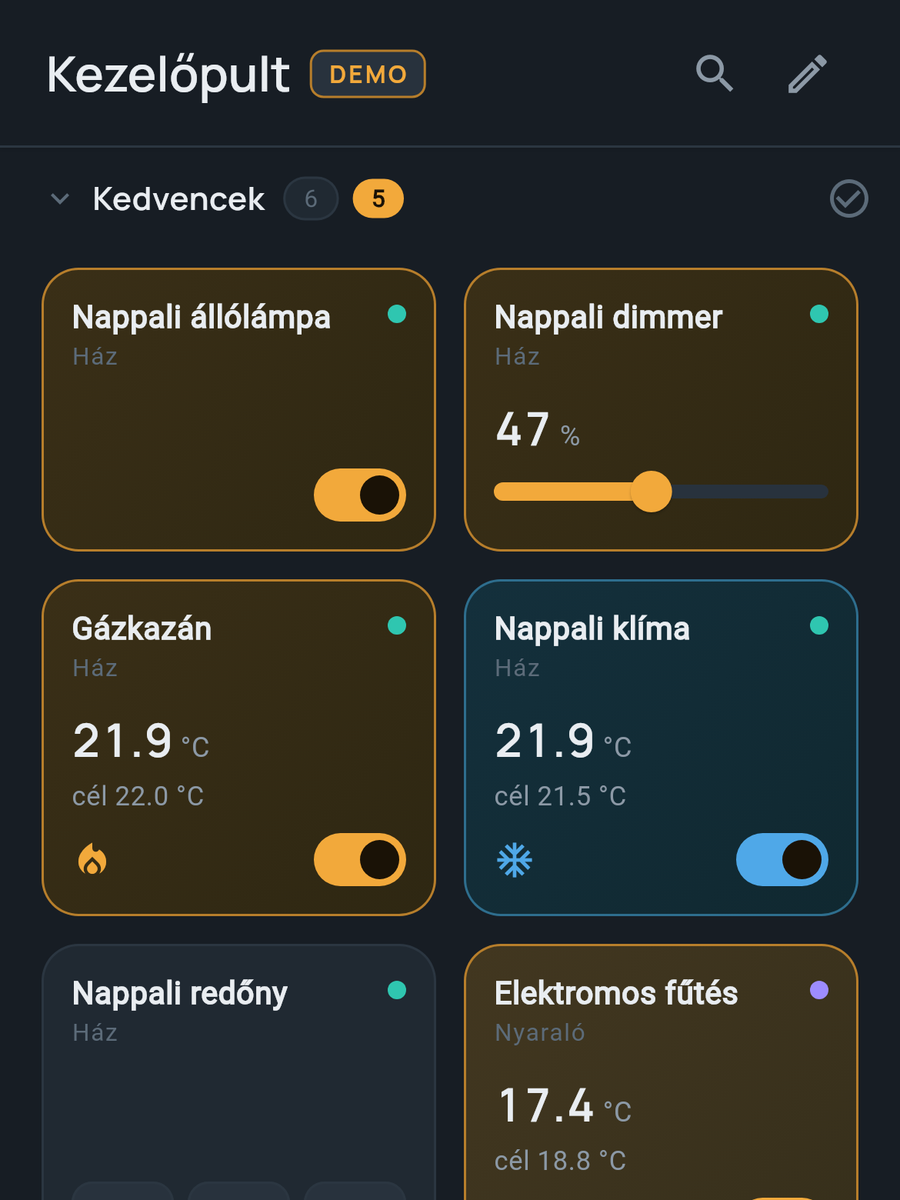
At the first start the app offers the demo mode. You can switch the lamps, blinds, heating and alarm of two made-up houses, “Ház” (house) and “Nyaraló” (holiday home), and try out zones and voice control too. The demo is completely separate from real use, and you leave it in the Settings.
This is how you add your own myIO:
- Open the Szerverek (servers) tab and choose to add a server.
- Give it a name, for example “House”, and enter the address of your myIO, its port, your username and your password. These are the same ones you use to log in to the myIO web interface.
- After saving, the app fetches the items of your myIO, and you can drag the tiles onto the dashboard.
If you don’t know the address of your myIO, the service display in the cabinet shows it. If you want to reach the house when you are away, the Control page lists the options, including myIO Cloud, which you pair by scanning a QR code.
If something does not work
- myIO is “offline” although its web interface works: check the address and the port, and that the username and password match the web login.
- No notifications arrive: allow the app’s notifications in the Android settings, and exclude the app from battery optimisation. In the browser, notifications are only certain while the tab is open.
- myIO does not appear in the car: allow Unknown sources in the developer settings of Android Auto, and reconnect the phone.
The other cases are covered in the last chapter of the app manual (in Hungarian) and in the Troubleshooting guide.
For professionals
- Android: the APK updates itself; the update mode can be set in the app (automatic, notify only, off), and a manual check starts from Beállítások › Névjegy › Alkalmazás frissítése (Settings › About › Update the app).
- The app tracks items by the controller’s ID, not its IP address: if the controller gets a new address, the dashboard stays, and only the server address has to be changed.
- The controller’s address: on the service display (V3 and V4 GIGA: on the controller, V4 Opta: on the Expander 16), in the router’s device list, or by network name (for example myio-nappali.local) if mDNS is switched on.
- Web/PWA: depending on the browser, the web app served over https cannot reach a local controller served over http (mixed content; in Chrome, the local network access permission); from the browser, 4.x firmware allows access (CORS). On an iPhone, the controller’s own web interface can be added to the home screen over http too.
- Full functionality comes with V4; V3 works with the basic functions. myIO Cloud: only in the installed app.